App Store & Google Play Screenshots Generator
A skill for AI coding agents that scaffolds a production-ready Next.js editor for App Store and Google Play marketing screenshots. It gives you a connected canvas, real device frames, inspector controls, persistent project state, and one-click export bundles at store-ready sizes.
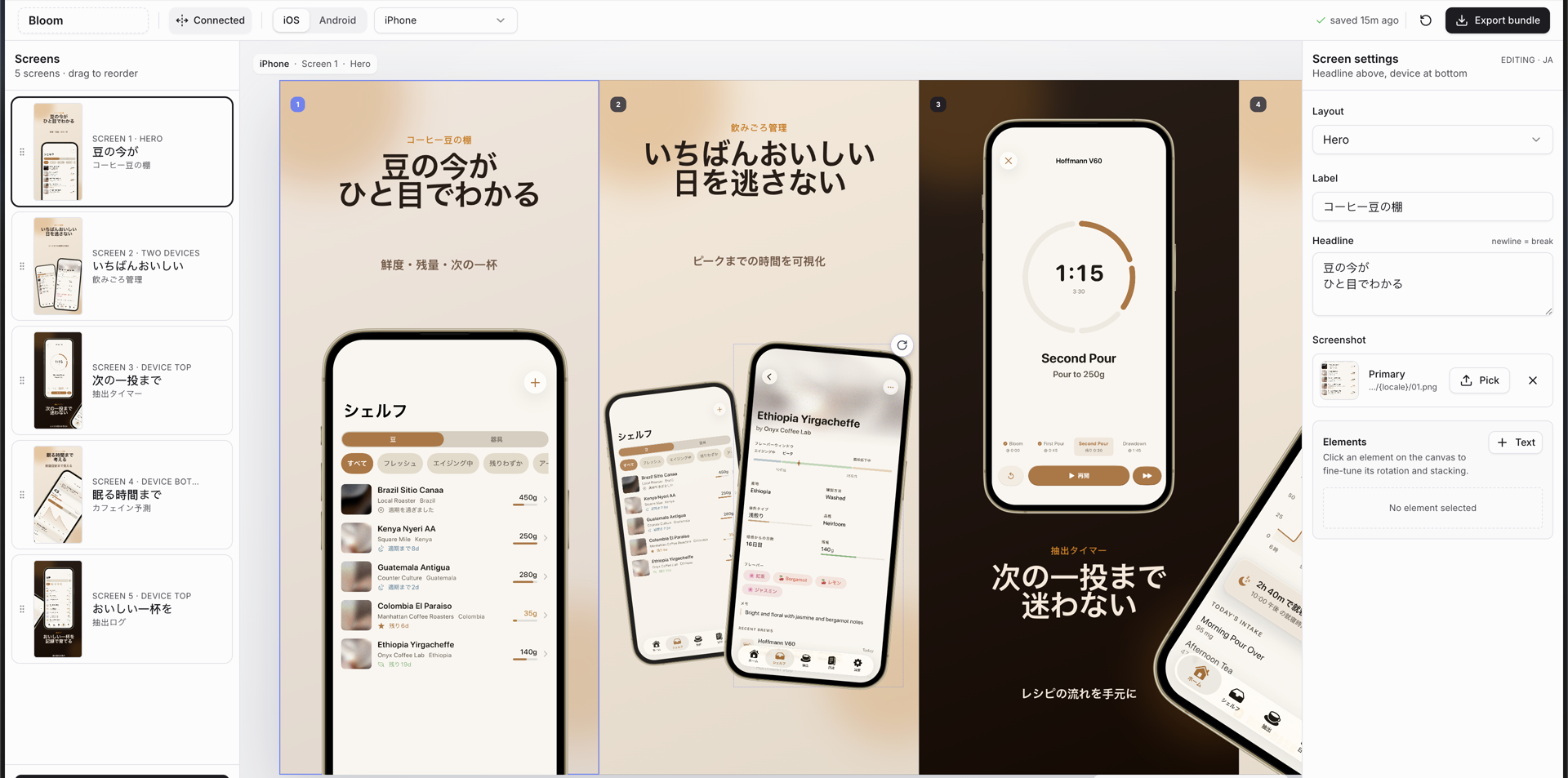
Example screenshots generated with this skill were accepted for Bloom Coffee Shelf Recipe on the App Store.
What It Does
- Builds a full screenshot editor instead of a static one-off page
- Turns raw app captures into ad-style slides with big readable copy
- Lets phones, captions, and decorative elements span adjacent screenshots on one connected canvas
- Keeps older projects safe with isolated-screen export mode until you opt into connected crops
- Saves every deck to
app-store-screenshots.json, so the project is git-trackable and resumable
- Uploads picked screenshots into
public/screenshots/uploaded/<hash>.png
- Supports iPhone, iPhone Duo (outer and inner displays, portrait and landscape), iPad, Apple TV, Apple Watch, CarPlay, Mac, Android phone, Android tablet, and Play Store feature graphic decks
- Makes App Store creative assets for the product page header and search results (one universal 5244 x 2950 asset, or separate header and search assets)
- Exports exact PNG bundles for all required App Store, Mac App Store, and Google Play sizes
- Supports locales, RTL-aware copy/layout guidance, reusable themes, and in-place project migration
- Ships 18 named visual styles with deep specs and a headline copy library
Current Editor UI
- Connected canvas - view the whole screenshot strip at once, drag elements across screen boundaries, then export each screen as a precise crop.
- Isolated mode - preserve legacy decks where offscreen elements should not leak into neighboring exports.
- Screen sidebar - add, select, and drag-to-reorder screens with live thumbnails.
- Inspector - edit layout, labels, headlines, screenshots, element stacking, and transforms from the right panel. A Copy ideas menu next to the headline drops in a proven formula to rewrite.
- Theme picker - switch palette presets from the toolbar, including one preset per named style.
- Style Lab - see four complete looks for your deck side by side (palette, type, layout rhythm and scene), keep the parts you like with Colors/Type/Layout/Scene locks, shuffle or remix the rest, save favourites, apply one as a single undoable edit, and export a comparison image.
- Scene Playground - restyle every screen at once: backdrops (gradient, solid, aurora, spotlight, grid, dots, ruled) that can flow across the whole strip, decorations, device shadow, glow and 3D tilt, and headline weight, case and alignment.
- Magnifier - add a loupe to any screen that zooms into one detail of its screenshot; aim it on a thumbnail, set the zoom and shape, and drag it anywhere.
- Platform switcher - iOS, Mac, and Android tabs keep every deck side by side while sharing the same editor workflow.
- Device selector - iPhone, iPad, iPhone Duo outer and inner, Apple TV, Apple Watch, CarPlay, and App Store creative assets under iOS; Android phone, Android tablets, and the feature graphic under Android. The Mac tab is a single 16:10 Mac deck.
- Autosave - writes to disk through
/api/project, mirrors to localStorage, and detects newer disk revisions before overwriting work from another tab or agent. Failed saves can be retried; unsaved edits trigger a warning before leaving.
- Export bundle - downloads a zip organized by platform, device, resolution, and locale.
Tip: when capturing source iPhone screenshots, the 6.1-inch simulator is usually the easiest starting point because it reduces manual image adjustment inside the frames.
Install
Using npx skills
npx skills add ParthJadhav/app-store-screenshots
Install globally:
npx skills add ParthJadhav/app-store-screenshots -g
Install for a specific agent:
npx skills add ParthJadhav/app-store-screenshots -a claude-code
This works with Claude Code, Cursor, Windsurf, OpenCode, Codex, and other agents supported by skills.
Manual install
git clone https://github.com/ParthJadhav/app-store-screenshots ~/.claude/skills/app-store-screenshots
Usage
Once installed, ask your coding agent for store screenshots:
Build App Store and Google Play screenshots for my app.
The skill guides the agent to ask for your app context, source screenshots, platforms, locales, visual direction, and slide count before generating the editor project.
Example Prompts
Build App Store screenshots for my habit tracker.
The app helps people stay consistent with simple daily routines.
I want 6 slides, clean minimal style, warm neutrals, and a calm premium feel.
Generate App Store screenshots for my personal finance app.
The main strengths are fast expense capture, clear monthly trends, and shared budgets.
I want a sharp modern style with high contrast and 7 slides.
Build Mac App Store screenshots for my menu-bar utility.
The app lives in the menu bar and finds files on this Mac instantly.
I want 5 slides, a dark Mac window frame, and a calm desktop feel.
Build App Store screenshots for my language learning app.
I need English, German, and Arabic screenshot sets.
Use two reusable themes: clean-light and dark-bold.
Make sure Arabic slides feel RTL-native, not just translated.
Better Prompt Tips
- Say what the app does in one sentence
- List the top 3-5 features in priority order
- Mention the platforms and devices you need
- Describe the visual style you want
- Say how many slides you want
- Mention required locales or RTL languages
- Provide source screenshot paths, app icon, and style references when available
What Gets Scaffolded
If starting from an empty folder, the skill creates a Next.js project like this:
project/
├── public/
│   ├── mockup.png
│   ├── app-icon.png
│   ├── frames/                 # Apple's device bezels (bundled)
│   └── screenshots/
│       ├── apple/
│       │   ├── iphone/{locale}/01.png
│       │   ├── ipad/{locale}/01.png
│       │   ├── tvos/{locale}/01.png
│       │   ├── watchos/{locale}/01.png
│       │   ├── carplay/{locale}/01.png
│       │   └── mac/{locale}/01.png
│       └── android/
│           ├── phone/{locale}/01.png
│           ├── tablet-7/portrait/{locale}/01.png
│           ├── tablet-10/landscape/{locale}/01.png
│           └── feature-graphic/{locale}/01.png
├── app-store-screenshots.json
├── src/app/
│   ├── layout.tsx
│   └── page.tsx
├── src/components/editor/
│   ├── screenshot-editor.tsx
│   ├── toolbar.tsx
│   ├── sidebar.tsx
│   ├── inspector.tsx
│   ├── preview-stage.tsx
│   ├── slide-canvas.tsx
│   ├── screenshot-picker.tsx
│   └── device-frames.tsx
└── src/lib/
    ├── constants.ts
    ├── defaults.ts
    ├── storage.ts
    ├── image-cache.ts
    ├── export-render.ts
    └── types.ts
The template README inside skills/app-store-screenshots/template/README.md documents the editor internals in more detail.
Editor Workflow
- Capture real app screenshots from a simulator, emulator, or device.
- Ask your agent to scaffold or migrate the screenshot project.
- Run the dev server and open the editor.
- Use the sidebar to organize screens and the inspector to edit copy, layouts, screenshots, and elements.
- Choose Connected or Isolated mode depending on whether elements should cross screen boundaries.
- Open Style Lab to compare complete looks, or Scene to tune backdrop, depth and headline style by hand.
- Click Export bundle to download store-ready PNGs.
Uploaded files are saved under public/screenshots/uploaded/, and the canonical deck state is saved in app-store-screenshots.json. Commit both to make the deck reproducible after a fresh clone.
Export Sizes
Apple App Store
| Device | Resolution |
|---|
| iPhone 6.9" | 1320 x 2868 |
| iPhone 6.5" | 1284 x 2778 |
| iPhone 6.3" | 1206 x 2622 |
| iPhone 6.1" | 1125 x 2436 |
| iPad 13" | 2064 x 2752 |
| iPad Pro 12.9" | 2048 x 2732 |
| Apple TV | 3840 x 2160, 1920 x 1080 |
| Apple Watch Ultra | 422 x 514, 410 x 502 |
| Apple Watch Series 10 | 416 x 496 |
| Apple Watch Series 7 | 396 x 484 |
| Apple Watch Series 4 | 368 x 448 |
| Apple Watch Series 3 | 312 x 390 |
| CarPlay (iPhone slot, landscape) | 2868 x 1320, 2778 x 1284, 2622 x 1206, 2436 x 1125 |
| iPhone Duo outer display | 1398 x 2034 portrait, 2034 x 1398 landscape |
| iPhone Duo inner display | 2007 x 2853 portrait, 2853 x 2007 landscape |
App Store Connect has no CarPlay screenshot slot: CarPlay shots are uploaded into the iPhone slot, so the CarPlay deck exports landscape iPhone sizes with a head-unit frame.
Each iPhone Duo display and orientation has its own deck, so portrait and landscape keep independent compositions. Landscape decks make the device the hero under a one-line headline, and Folded + open pairs the closed phone with the opened one. iphone-duo.md has the design research and the rules the skill follows: the displays, what real Duo captures look like, and what the first published sets do. Use real captures from each display: a capture from another display is letterboxed, never cropped or stretched, and the editor says so. Apple's product bezels from Apple Design Resources ship in the template's public/frames/, so iPhone, iPad, Apple Watch, Apple TV, Mac and iPhone Duo are drawn in Apple's own frames. The editor measures each frame's screen cutout. Swap a file for another finish from Apple's pack. Apple licenses the bezels for mock-ups of apps for Apple platforms only. See the template README for the file names.
App Store creative assets
| Asset | Resolution |
|---|
| Universal (header + search results) | 5244 x 2950 |
| Product page header | 3840 x 1646 |
| Search results (3:2) | 3840 x 2560, 1920 x 1280 |
Creative assets use the deck's theme, font, scene and editable copy, with layouts kept inside the art safe area measured from Apple's templates. The editor shows non-exporting safe-area guides and, for the universal asset, estimated header and search crops with live previews. Check final placement in App Store Connect's Preview tool.
Mac App Store
| Device | Resolution |
|---|
| Mac (16:10) | 2880 x 1800, 2560 x 1600, 1440 x 900, 1280 x 800 |
Mac has its own Mac tab because App Store Connect lists macOS as a separate platform from the iOS app. Its bundle exports to macos/mac/<WxH>/<locale>/, next to ios/... and android/.... The Mac window frame has a 16:10 content area, so a full-screen 16:10 capture fills it without cropping.
Google Play Store

 @parthjadhav


