
content-ideas
Scrapes tracked competitor accounts on X, Instagram, TikTok and YouTube, scores what is performing well, and turns it into a daily feed of content ideas framed against your own brand.
1 skill1 hook1 command+2+1+1147
 @bradautomates
Lets Claude watch a video from a URL or local file by pulling timestamped frames and a transcript. Works in Claude Code, and the watch skill downloads with yt-dlp and extracts frames with ffmpeg.
Claude Code
> /plugin marketplace add bradautomates/claude-video> /plugin install watch@claude-video
Codex
$ npx skills add bradautomates/claude-video -a codex
Cursor
$ npx skills add bradautomates/claude-video -a cursor
Gemini CLI
$ npx skills add bradautomates/claude-video -a gemini-cli
GitHub Copilot
$ copilot plugin marketplace add bradautomates/claude-video$ copilot plugin install watch@claude-video
OpenCode
$ npx skills add bradautomates/claude-video -a opencode
Windsurf
$ npx skills add bradautomates/claude-video -a windsurf

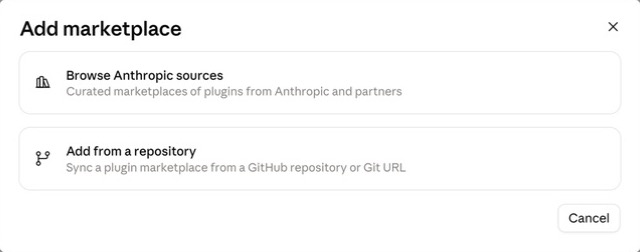
Give an agent video evidence: a URL or local file becomes timestamped frames and a transcript. Install it in Claude Code (the desktop app, VS Code, or a terminal), or use it with Codex and other Agent Skills hosts. Native captions come first; optional local WhisperX or Groq/OpenAI transcription handles videos without captions.
Using Claude? Run Watch in Claude Code. Install it through Claude Desktop and use a Code session, or add it with the plugin commands in VS Code or a terminal. Watch does not work in Claude Chat or Cowork; see why.
| Where you use your agent | Start here |
|---|---|
| Claude Desktop — Code | Install through Customize — no terminal needed |
| Codex — desktop app, CLI, or IDE extension | Ask Codex to install it — no terminal needed |
| Claude Code in VS Code | Use the extension's plugin window |
| Claude Code in a terminal | Enter the plugin commands |
| Cursor, Copilot, or another local agent | Use the Skills CLI |
| Claude Chat, Cowork, or a browser app | Chat and Cowork don't work; browser apps have limits |
Choose one installation method for your agent. If Watch is already installed, go straight to your first video.
https://github.com/bradautomates/claude-video
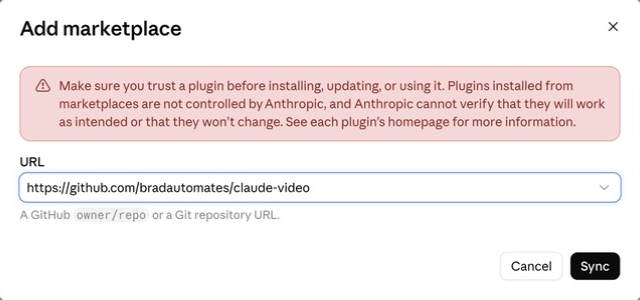
If you do not see these controls, update Claude Desktop. On a managed account, your administrator may control which plugins you can add. See the official plugin guide.
Screenshots show the installation controls only. Labels may vary slightly by app version.
Paste this into Codex's message box in the desktop app, CLI, or IDE extension:
Use $skill-installer to install the watch skill from:
https://github.com/bradautomates/claude-video/tree/main/skills/watch
Let Codex finish the installation, then start a new turn or session and ask it to use watch. If the skill does not appear, restart Codex. You do not need Node/npm for this route. See OpenAI's skill installation guide.
Alternative: native Codex plugin installation (desktop and CLI)
If you already have the Codex CLI installed, run these in your computer's terminal, one at a time:
codex plugin marketplace add bradautomates/claude-video
codex plugin add watch@claude-video
Start a new Codex session afterward. You can inspect the result with:
codex plugin list --marketplace claude-video
The desktop Plugins directory and CLI /plugins browser also show configured marketplaces. The IDE extension currently supports standalone skills, not plugins; use the message-box installation above there. This repository is a custom marketplace, so Watch will not automatically appear in the public plugin directory. Official plugin documentation
Continue with your first video.
/plugins into the Claude Code message box to open Manage plugins.bradautomates/claude-video./watch and select the suggested skill — normally /watch:watch — or ask Claude to use watch by name.The extension has its own graphical installer; you do not need to switch to a terminal. Its plugin configuration is shared with the local Claude Code CLI. Official VS Code instructions
Continue with your first video.
Open a terminal and start Claude Code with claude. Enter these inside the Claude Code session, one at a time:
/plugin marketplace add bradautomates/claude-video
/plugin install watch@claude-video
Follow the activation message. If Watch is not available yet, start a new Claude Code session. Type /watch and select /watch:watch from autocomplete. Official installation guide
Already at an ordinary terminal prompt?
Use these executable commands instead of the slash commands:
claude plugin marketplace add bradautomates/claude-video
claude plugin install watch@claude-video
Then start a new Claude Code session.
Continue with your first video.
For other Agent Skills hosts, install Node.js if needed, then run this in your computer's terminal:
npx skills add bradautomates/claude-video -g --skill watch
Select your agent when prompted, follow the installer's reported destination, then restart the agent. Node/npm is needed for this installer, not for Watch's Python runtime.
You can target an agent explicitly, for example -a codex, but Codex users can use the simpler message-box installation. See the Skills CLI documentation.
Fastest path — let Gemini watch it. Get a free Google AI Studio key. When the setup wizard asks for it, paste it in the chat, or have the agent open ~/.config/watch/.env in your text editor so you can paste it after GEMINI_API_KEY= and save it yourself. Watch then hands the whole video — picture and sound — to Google's agentic video model and relays its timestamped answer. YouTube links need nothing else installed. Local files are uploaded to Google and deleted after the answer.
No key, or a private video? Choose local. Watch extracts frames and a transcript on your machine (ffmpeg + yt-dlp), exactly as before. Force it any time with --engine local. The walkthrough below uses this no-key path.
example.mp4. Open that folder as your agent's project. Replace the filename below with your own.Use the watch skill on example.mp4 in the folder I shared.
For setup, choose balanced detail and captions only (none).
Summarize what is visible, with timestamps.
Success looks like a timestamped visual summary. This first run needs no transcription API key or local speech model. A local file with speech fallback disabled will not produce a speech transcript. The agent finds its bundled scripts itself; you do not need to locate a plugin-cache folder.
Next, try a public video URL and ask for transcript detail. Native captions can be read without downloading the video. URL access depends on the source and your session's network permissions.
You can add speech transcription afterward. Local WhisperX requires Watch v0.3.0 or later; if your installed copy is v0.2.0, update after the new release is available.
Watch uses Python 3.10+, FFmpeg/ffprobe, and current yt-dlp. YouTube also needs a supported JavaScript runtime/EJS setup. Installing the skill gives the agent instructions and scripts; it does not bundle these programs.
First, ask your agent:
Use the watch skill's bundled setup.py to check dependencies in this session.
Tell me which tools are missing and help me install them here.
Cloud sessions (such as Claude Code on the web): let the agent check inside its execution environment. Installing FFmpeg with Homebrew on your Mac does not install it inside a cloud sandbox. Package and network permissions may require administrator help. A new cloud task may also need setup again.
Agents running directly on your computer: Watch can install missing media tools through Homebrew on macOS. On other systems it supplies commands. If manual installation is needed, run the appropriate commands in a terminal:
| Operating system | Install commands |
|---|---|
| macOS | Install Homebrew, then brew install python ffmpeg yt-dlp. The current formula includes Deno/EJS/curl-cffi. |
| Ubuntu/Debian | sudo apt install python3 ffmpeg pipx, then pipx install "yt-dlp[default,curl-cffi]" and pipx ensurepath. Install Deno for YouTube. |
| Windows | Install Python 3.10+, then winget install --id Gyan.FFmpeg --exact, winget install --id yt-dlp.yt-dlp --exact, and winget install --id DenoLand.Deno --exact. |
Reopen the terminal and agent after installation so they can find the new tools. On Windows, verify Python with python --version or py -3 --version. Watch supports the latest yt-dlp release only, because sites routinely break older ones; it uses the executable available in the active environment.
Watch works in Claude Code: a Code session in Claude Desktop, or Claude Code installed with the plugin commands in VS Code or a terminal. Codex and other local agents work too.
| Surface | What to know |
|---|---|
| Claude Chat | Not supported, including uploading watch.skill as a custom skill. |
| Cowork (desktop or web) | Not supported. Cowork runs Watch in a cloud environment. The Gemini engine can run there, but your GEMINI_API_KEY doesn't persist between tasks. The local engine can't fetch most URLs, because most sites block yt-dlp downloads from that environment. |
| Claude Code on the web | Uses a cloud environment with its own setup and network settings. The interactive /plugin installer is unavailable there. The terminal walkthrough above is for local Claude Code. |
| ChatGPT/Codex browser surfaces | Attaching watch.skill to a chat is not a local Codex installation. Use the Codex installer above; a public/workspace plugin listing is a separate distribution route. |
See the official guides for Claude Code on the web and OpenAI plugin surfaces.
| Setting | Default and behavior |
|---|
Stars on GitHub
View @bradautomates’s profileScrapes tracked competitor accounts on X, Instagram, TikTok and YouTube, scores what is performing well, and turns it into a daily feed of content ideas framed against your own brand.
@bradautomatesResearches high-performing posts and videos from tracked accounts on X, Instagram, YouTube, and TikTok, then analyzes hooks and structure to surface patterns for a content plan. Built for creators and social media teams planning content.
@bradautomatesGives Claude Code access to the prompts.chat library, letting you search, retrieve and improve AI prompt templates, and find and install Agent Skills from its registry.
 @gh-f
A Claude Code skill for generating editable PPTX presentations and slides from a workflow, with reusable brand, style, layout, and deck workspaces, native charts, speaker notes, and template filling.
 @hugohe3
Gives AI agents control over Word, Excel and PowerPoint files, with skills for building .docx reports, academic papers, Excel dashboards and Morph-style animated slides.
 @iofficeai
A skill that builds animation-rich HTML presentations from scratch or converts PowerPoint files to web slides. Useful for anyone turning a deck into a web presentation.
 @zarazhangrui
Install it with the command on its page. It includes watch. Its skills do not fire on their own yet. Free and open source.
Is this plugin yours?
Claim it with GitHubSubmit a pluginPromote it