
Skill
data_analysis
High-performance data analysis using Polars - load, transform, aggregate, visualize and…
 @melandlabsView Skill
Use this when users ask about openloomi features, capabilities, or how to use it. Examples: 'openloomi 怎么用', '你能做什么', 'What can you do?', 'How does openloomi work?', 'Tell me about openloomi features', 'What platforms does openloomi support?', 'How do I use scheduled tasks?',
$ npx -y skills add melandlabs/openloomi --skill openloomi-feature-guide --agent claude-codeHow it fires
How this skill gets triggered: by you, by Claude, or both.
/openloomi-feature-guideContext preview
The summary Claude sees to decide when to auto-load this skill.
Use this when users ask about openloomi features, capabilities, or how to use it. Examples: 'openloomi 怎么用', '你能做什么', 'What can you do?', 'How does openloomi work?', 'Tell me about openloomi features', 'What platforms does openloomi support?', 'How do I use scheduled tasks?',
name: openloomi-feature-guide
description: "Use this when users ask about openloomi features, capabilities, or how to use it. Examples: 'openloomi 怎么用', '你能做什么', 'What can you do?', 'How does openloomi work?', 'Tell me about openloomi features', 'What platforms does openloomi support?', 'How do I use scheduled tasks?', 'What is Loop?', 'How does the attention agent work?', 'What is a Decision Card?', 'How do connectors work?', 'How do I extend Loop with custom types?', 'What is a classifier rule?', 'How do I plug openloomi into Claude Code / Codex?'"
metadata:
  version: 0.9.0
> **Note:** If OpenLoomi readiness is unknown, use `openloomi-setup` first. If OpenLoomi Desktop is not installed, follow [Getting Started](https://openloomi.ai/docs/getting-started).
Use this skill when users ask about openloomi features, usage, or capabilities. Provide accurate and easy-to-understand feature introductions and operation guides. The terms used here (Loop, Signal, Decision, Card, ActionKind, Attention Agent, Connector, Memory, Audit Log, Plugin, Agent Runtime, Composio, etc.) are defined in the **Glossary** below — read it first if a user asks anything conceptual.
---
OpenLoomi is an **open-source AI coworker, driven by an attention agent**. It connects your authorized work tools and screen content, builds a **holistic context** of your people, projects, and decisions, and tells you what happened, why it matters, what to do next — and surfaces daily summaries — saving your attention for what matters.
Use it standalone, or plug any Agent framework into the same resident desktop: **Claude Code, Codex, OpenCode, Hermes, and OpenClaw** all work. The desktop attention agent (a small fox named **Loomi**) lives on top of your screen and surfaces the day's decisions as gentle bubbles you can approve in one tap.
---
OpenLoomi is best read as a single **chain from input to action**, not as one big chat window. Connectors bring events in, Memory holds context, Loop decides what matters and turns each signal into a Decision card, the Attention Agent (Loomi) shows the card on your desktop, you tap Approve, and an Action Runner executes through a Connector — then the outcome is written back to Memory and recorded in the Audit Log.
This page exists to make that chain legible. It first walks the chain end-to-end, then defines every concept you're likely to meet in other pages, and finishes with a short table of distinctions that get confused in practice. Every cross-reference links to an existing page; nothing here duplicates their full setup or configuration.
OpenLoomi is one pipeline. The same pieces appear on every page, just framed differently.
Two parallel input paths feed the same context layer. The main one is real-time and runs through Loop; the side one is screen-based and lands in Memory without going through Signals.
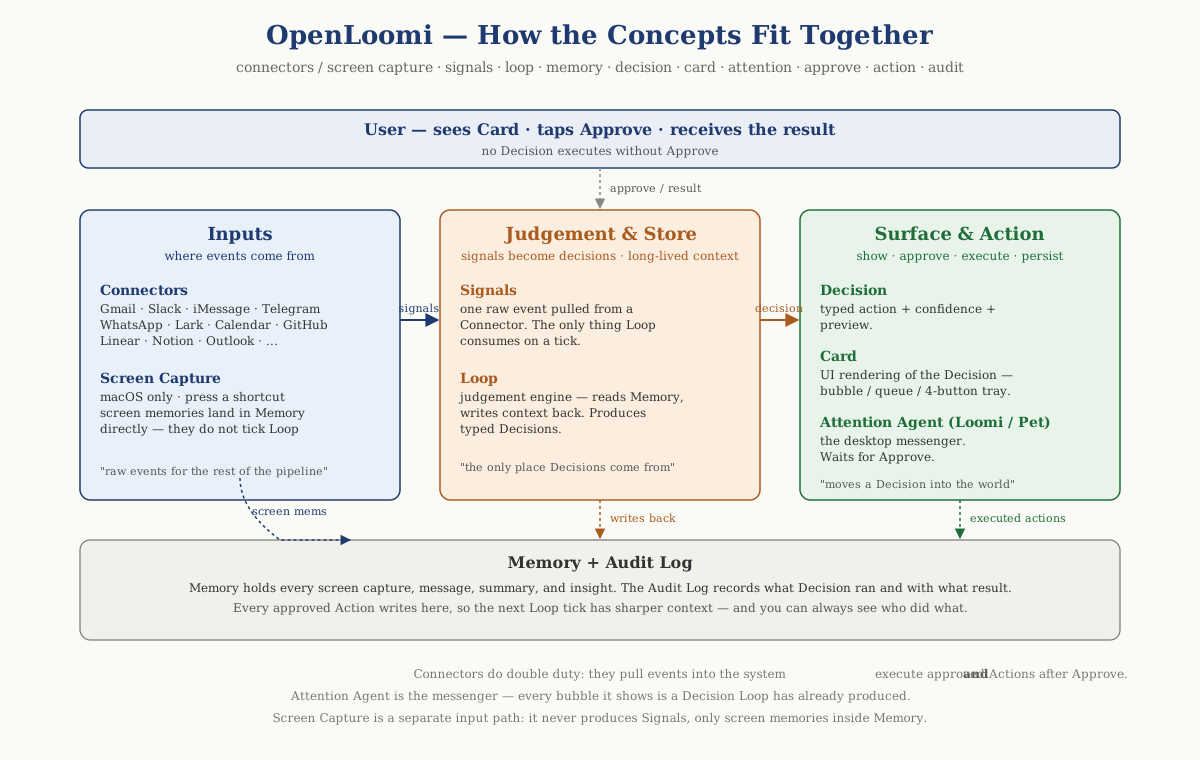
A short reading guide for the figure:
> 9:12 AM. Sarah writes: "Hi — I tweaked tomorrow's Q2 review agenda, can you take a look? Also, I'd like to move our Wednesday 1:1 to Thursday same time — works for you?"
Step by step through the chain:
| Step | Where it happens | What is produced | | ------------- | -------------------------------------------------------------- | ------------------------------------------------------------------------------ | | 1. Ingest | Gmail **Connector** | A raw **Signal** — a new email event | | 2. Enrich | **Memory** + **Screen Capture** (if you had related tabs open) | A context slice: who Sarah is, the Q2 project note, last thread summary | | 3. Judge | **Loop** tick | A typed **Decision** — `email_reply`, confidence `0.85`
OpenLoomi is an open-source AI coworker. It connects your work tools, understands what you’re working on, and tells you what needs your attention, why it matters, and what to do next. It’s your open-source Attention Agent.
Repo: melandlabs/openloomi
High-performance data analysis using Polars - load, transform, aggregate, visualize and…
@melandlabsView SkillPersist learning across turns by actively maintaining MENTAL_MODEL.md in the workspace. Use…
@melandlabsView SkillCreate an end-to-end Continual Learning Bench task. Use when adding a new src/tasks/<name>…
@melandlabsView SkillUse 1000+ external apps via Composio - either directly through the CLI or by building AI…
@melandlabsView Skillopenloomi HTTP API reference (local-first, served from the OpenLoomi Desktop app at…
@melandlabsView Skillopenloomi Connectors tools - manage the native 7 messaging integrations and pair with the…
@melandlabsView Skill