
Frontend
Plugin
igniteui-cli
Ignite UI Command-Line Interface by Infragistics.

Plugin Signal80/100Strong
maintained100
capable60
documented100
adopted46
Install
$ npx -y skills add igniteui/igniteui-cli --agent claude-code
Stats
137
Stars
10
Forks
Active
Maintenance
TypeScript
Language
MIT
License
21h ago
Last commit
9y ago
Created
2h ago
Added
In this plugin
- igniteui-blazor-components
- igniteui-blazor-generate-from-image-design
- igniteui-blazor-grids
- igniteui-blazor-theming
- igniteui-react-components
- igniteui-react-customize-theme
- igniteui-react-generate-from-image-design
- igniteui-react-optimize-bundle-size
- igniteui-wc-choose-components
- igniteui-wc-customize-component-theme
- igniteui-wc-generate-from-image-design
- igniteui-wc-integrate-with-framework
- igniteui-wc-optimize-bundle-size
- igniteui-angular-components
- igniteui-angular-generate-from-image-design
- igniteui-angular-grids
- igniteui-angular-theming
What's inside
Skill(17 skills)
/igniteui-blazor-componentsCovers non-grid Ignite UI for Blazor UI components: application setup, form controls (inputs, combos, selects, date/time pickers, calendar, checkbox, radio, switch, slider, rating), layout containers (tabs, stepper, accordion, expansion panel, navigation drawer, navbar, tree),/igniteui-blazor-generate-from-image-designImplement Blazor application views from design images using Ignite UI Blazor components. Uses MCP servers (igniteui-cli, igniteui-theming) to discover components, generate themes, and follow best practices. Triggers when the user provides a design image (screenshot, mockup,/igniteui-blazor-gridsProvides guidance on all Ignite UI for Blazor data grid types (Grid Lite, Flat Grid, Tree Grid, Hierarchical Grid, Pivot Grid) including setup, column configuration, sorting, filtering, selection, editing, grouping, summaries, toolbar, export, paging, remote data, and state
- /igniteui-blazor-theming
- /igniteui-react-components
- /igniteui-react-customize-theme
- /igniteui-react-generate-from-image-design
- /igniteui-react-optimize-bundle-size
- /igniteui-wc-choose-components
- /igniteui-wc-customize-component-theme
- /igniteui-wc-generate-from-image-design
- /igniteui-wc-integrate-with-framework
- /igniteui-wc-optimize-bundle-size
- /igniteui-angular-components
- /igniteui-angular-generate-from-image-design
- /igniteui-angular-grids
- /igniteui-angular-theming
Badges




README
Ignite UI CLI
Quickly create projects, including Ignite UI for Angular and Ignite UI for Web Components, for a variety of frameworks.
Overview
Features:
- Create project structure
- Add views with Ignite UI components (e.g. Combo, Grid or Chart)
- Add scenario based templates with multiple components (e.g. a dashboard)
- Build and install npm packages
- Select a theme, support for custom themes coming soon
- Step by step guide
Supported frameworks
- Angular
- React
- Web Components
- Blazor
- jQuery
Prerequisites
The repository houses multiple packages and orchestrates building and publishing them with lerna and yarn workspaces.
In order to build the repository locally, you need to have yarn installed on your machine.
For installation instructions, please visit their official page
Packages
This monorepo contains several packages that combine into the igniteui-cli:
| Package | Description | Location |
|---|---|---|
| @igniteui/cli-core | Contains the core functionality of the cli tool | packages/core |
| @igniteui/angular-templates | Contains the template definitions for Angular components | packages/igx-templates |
| @igniteui/angular-schematics | IgniteUI CLI implementation to be used with Angular CLI's schematics engine | packages/ng-schematics |
| igniteui-cli | Standalone IgniteUI CLI tool for React, Blazor, Angular, jQuery and Web Components | packages/cli |
| @igniteui/mcp-server | MCP server providing AI assistants with Ignite UI documentation and API reference | packages/igniteui-mcp/igniteui-doc-mcp |
Table of Contents
- Installation
- Usage
- Step by step
- List available commands
- Generating Projects and adding components
- Generate Ignite UI for Angular project
- Generate Ignite UI for React project
- Adding components
- Build and run
- Configure AI Tooling
- MCP Server
- Using with AI Assistants
- Testing with MCP Inspector
- Schematics
- Schematic Definitions
- Contribution
Installation
Install the npm package as a global module:
npm install -g igniteui-cli
Usage
The main entry point is igniteui and is also aliased as ig. Both can be used interchangeably to call available commands. Check out our Wiki documentation for more details.
Step by step
To get a guided experience through the available options, simply run:
ig
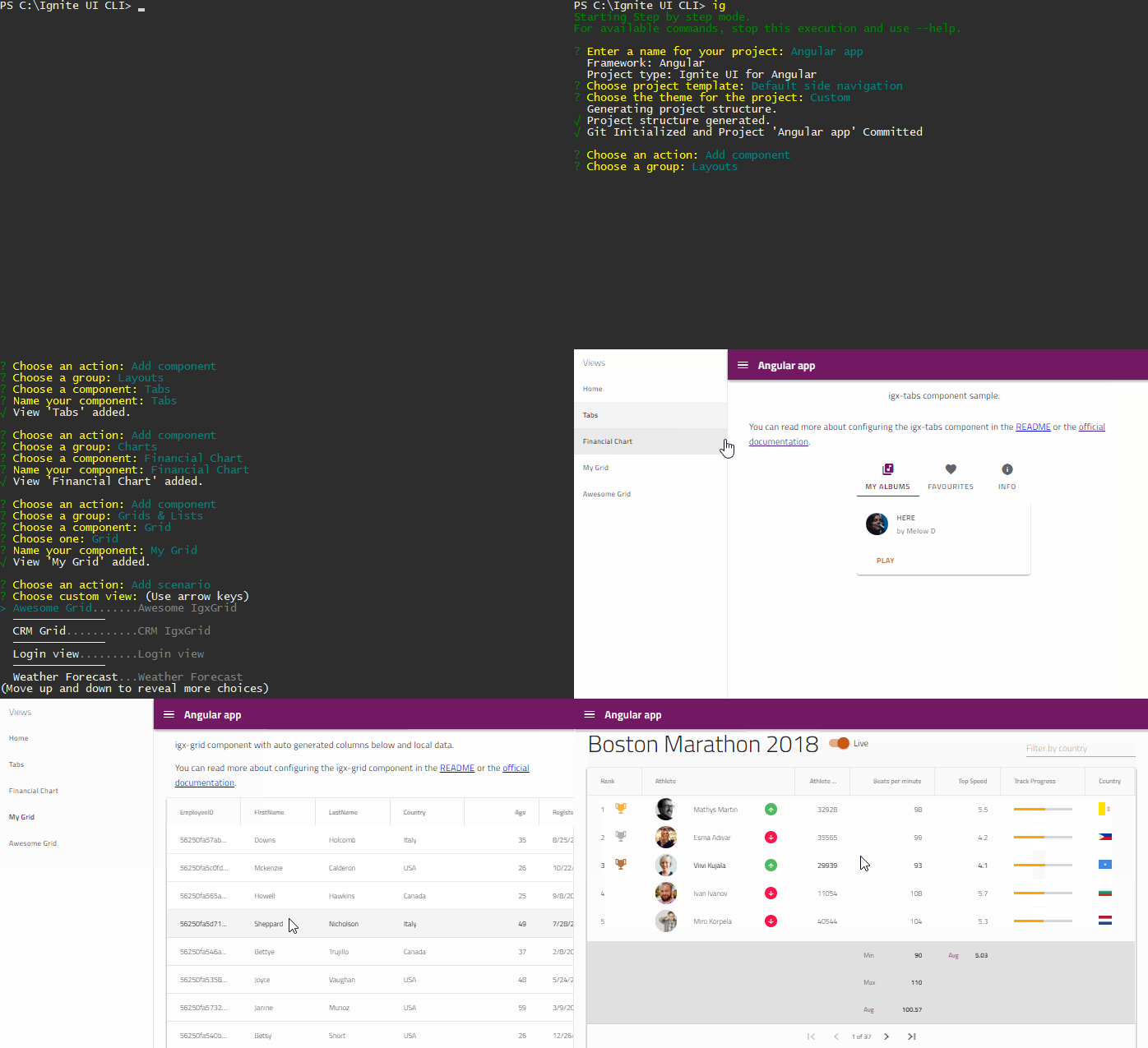
Upon creation, project will be automatically loaded in the default browser.
NOTE: If that doesn't happen the port may be already in use. Ports vary for different project types, see the description for the ig start command for details on default ports.
List the available commands.
ig help
Generating projects and adding components
Create a new project passing name, framework and style theme.
ig new <project name> --framework=<framework> --type=<proj-type> --theme=<theme>
This will create the project and will install the needed dependencies.
Parameters besides name are optional. Framework defaults to "angular", project type defaults to the first available in the framework and theme to the first available for the project. For more information visit ig new Wiki page.
Generate Ignite UI for Angular project
To create a new project with Ignite UI for Angular use ig new by specifying angular as framework, and optionally igx-ts as project type and selecting one of the project templates:
ig new "IG Project" --framework=angular --type=igx-ts --template=side-nav
Generate Ignite UI for React project
To create a new project with Ignite UI for React use ig new by specifying react as framework and igr-ts as project type:
ig new "IG Project" --framework=react --type=igr-ts
Generate Ignite UI for Web Components project
To create a new project with Ignite UI for Web Components use ig new by specifying webcomponents as framework:
ig new "IG Project" --framework=webcomponents
Adding components
Once you have created a project, at any point you can add additional component templates using ig add. Running the command without parameters will guide you through the available templates:
ig add
Add a new component or template to the project passing component ID and choosing a name.
ig add <component/template> <component_name>
The ID matches either a component ("grid", "combo", "text-editor", etc) or a predefined template. Predefined templates are framework/project specific and can provide predefined views with either multiple components or fulfilling a specific use case like "form-validation", "master-detail" and so on.
For full list of supported templates in the current project you can simply run ig list command:
ig list
Build and run
ig build
ig start
Configure AI Tooling
Ignite UI provides rich AI assisted development toolchain. To configure Ignite UI AI tooling — MCP servers and AI coding skills — run:
ig ai-config
You will be prompted with two selections:
- AI agents — which tools to generate skill and instruction files for (Generic and Claude are selected by default)
- Coding assistants — which assistants to configure MCP servers for (general
.mcp.jsonis selected by default, compatible with Claude Code, VS Code, and others)
You can also pass options directly:
ig ai-config --agents claude copilot generic --assistants vscode cursor
This creates or updates the assistant-specific MCP config file (e.g. .mcp.json, .vscode/mcp.json, .cursor/mcp.json) with entries for the Ignite UI MCP and igniteui-theming MCP servers (existing servers are preserved), copies AI coding skill files from installed Ignite UI packages, and generates agent-specific instruction files (e.g. CLAUDE.md, AGENTS.md).
The ig new command also prompts for AI tool configuration as part of project creation.
MCP Server
The CLI includes a bundled MCP (Model Context Protocol) server that provides AI assistants with Ignite UI documentation search, API reference lookup, and scaffolding guidance for Angular, React, Blazor, and Web Components.
Start the MCP server:
ig mcp
The server runs over stdio and supports the following options:
ig mcp --remote <url>   # Use a remote backend instead of the local SQLite database
ig mcp --debug          # Enable debug logging to mcp-server.log
Using with AI Assistants
For VS Code, the ig ai-config command handles configuration automatically (see above). For other MCP clients (e.g., Claude Desktop, Cursor), configure them manually:
{
  "mcpServers": {
    "igniteui-cli": {
      "command": "npx",
      "args": ["-y", "igniteui-cli", "mcp"]
    },
    "igniteui-theming": {
      "command": "npx",
      "args": ["-y", "igniteui-theming", "igniteui-theming-mcp"]
    }
  }
}
The MCP server exposes the following tools to AI assistants:
| Tool | Description |
|---|---|
list_components | List available Ignite UI component docs. Filter by framework and optional keyword match against filename, component name, keywords, or summary. |
get_doc | Return the full markdown content of a specific component doc by name (e.g., grid-editing, accordion). |
search_docs | Full-text search across Ignite UI docs for a specific framework. Supports prefix matching (e.g., grid*). |
search_api | Search Ignite UI API entries by keyword, feature name, or partial component name. |
get_api_reference | Return the full API reference for a specific Ignite UI component or class by exact name. |
get_project_setup_guide | Returns setup guides for creating a new Ignite UI project. For Angular/React/Web Components: CLI scaffolding instructions. For Blazor: dotnet new + NuGet setup guide. |
Testing with MCP Inspector
To interactively test and debug the MCP server tools:
npx @modelcontextprotocol/inspector ig mcp
Schematics
You can also add Ignite UI for Angular components to your projects by using the igniteui/angular-schematics package. It included schematic definitions for most of the logic present in the igniteui-cli. These can be called in any existing Angular project or even when creating one. You can learn more about the schematics package on from its readme.
Contribution
See the Contribution guide to get started.
Run locally
-
Clone the repository
-
Install dependencies with
yarn install -
Build the MCP server and bundle it into the CLI:
cd packages/igniteui-mcp/igniteui-doc-mcp npm install npm run build cd ../../.. npm run build:mcp -
Build the monorepo packages:
npm run build -
Open in Visual Studio Code
There is a predefined launch.config file for VS Code in the root folder, so you can use VS Code View/Debug window and choose one of the predefined actions. These include launching the step by step guide, create new project for a particular framework or add components.
-
Hit Start Debugging/F5
Template smoke test
scripts/smoke-test.sh drives the locally built CLI end to end: it scaffolds a project, adds
every component template into it, installs, and builds. The Jasmine specs under spec/ stub out
PackageManager.installPackages, so they verify that files land on disk but never that the result
installs or compiles — this script covers that gap.
File tree
FAQ
igniteui-cli is a Claude Code plugin with 17 hand-picked skills, indexed on Flowy in the Frontend category. Install it with the command on its page. It includes igniteui-blazor-components, igniteui-blazor-generate-from-image-design, igniteui-blazor-grids. Its skills do not fire on their own yet. Request auto-invocation to have Flowy route them as you prompt. Free and open source.
- What is igniteui-cli?
- Ignite UI Command-Line Interface by Infragistics
- How do I install igniteui-cli?
- Run these in Claude Code: npx -y skills add igniteui/igniteui-cli --agent claude-code. Then prompt normally.
- Does igniteui-cli auto-invoke its skills?
- Not yet. It is indexed on Flowy as a plain plugin. Request auto-invocation on its page and Flowy will route its skills for you as you prompt.
- Is igniteui-cli free?
- Yes. Flowy is free and open source, with nothing gated. You can read every skill in full before you install.
Is this plugin yours?
Claim it with GitHubSubmit a pluginPromote it